



Using Replication
4 minute read
TrueNAS Connect Replication allows administrators to create replication tasks between connected and authenticated systems. It shows information on scheduled, pending, and failed tasks, and shows the error messages for failed tasks. The replication task wizard guides you through the process of creating a new task between TrueNAS systems.
Understanding Replication
The TrueNAS Connect Replication screen shows the status of replication tasks added in TrueNAS Connect as either pending, successful, or failed. The Replication Network pane provides a visual status of the systems, SSH connections between systems, and the status of the last executed task, or if no task has run yet, the status of the task at the top of the Upcoming task item list.
Create or hovering over a system icon on the Replication Network pane to see the option to add a replication task opens the Replication Wizard that guides you through the process of creating a replication task.
Creating a Replication Task
This procedure describes creating a PUSH replication task.
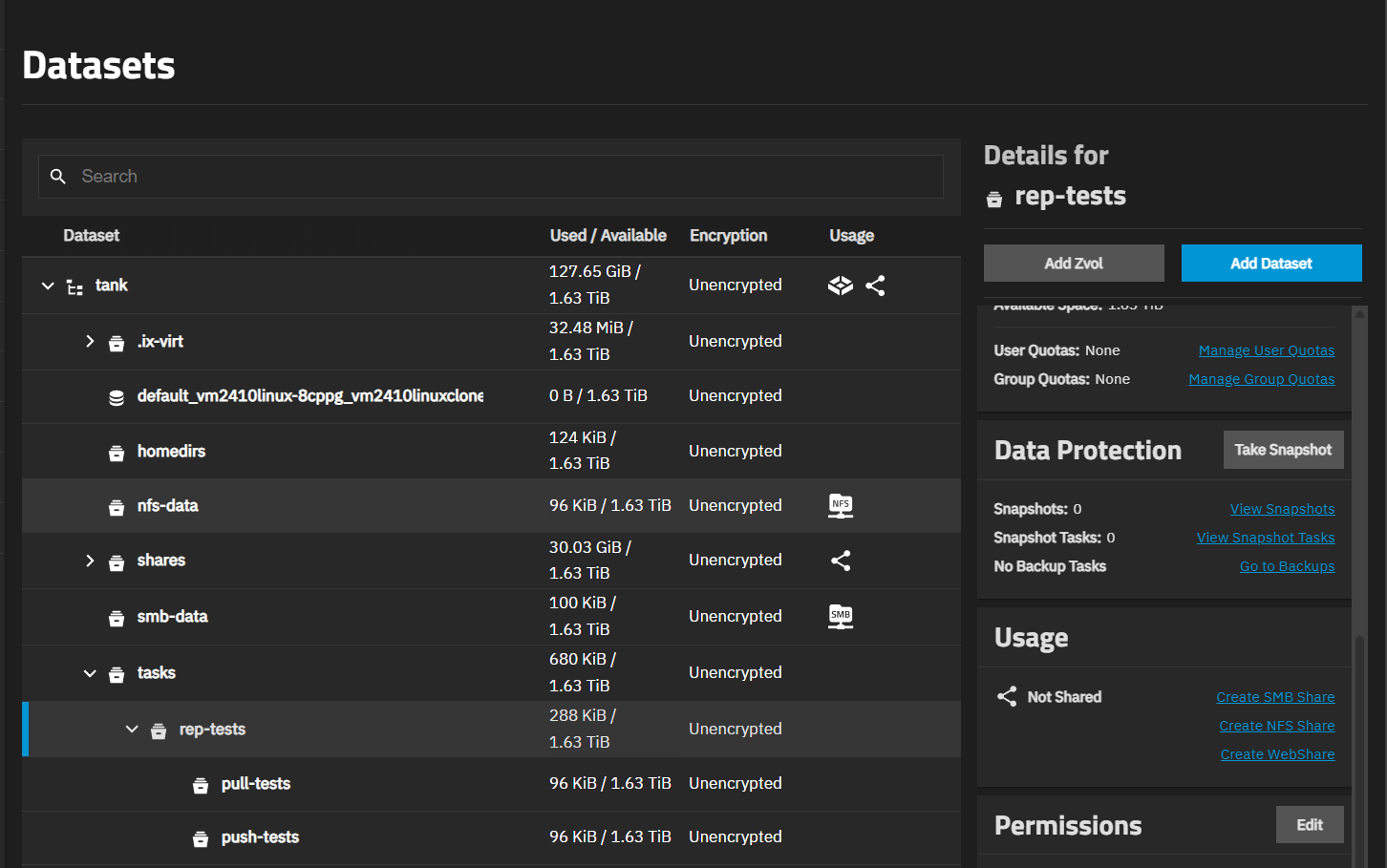
Begin by logging in to the TrueNAS UI to create the dataset(s) you want to replicate, and then take an initial snapshot of these datasets to provide the required initial snapshots that TrueNAS Connect replication uses as a basis for a replication task. In the example screenshot, the datasets are pull-tests and push-tests under the rep-tests parent dataset. Select the dataset, and click Take Snapshot on the Data Protection card. Repeat for each dataset you plan to create a replication task with.
Launch your TrueNAS Connect account login screen by clicking on the TrueNAS Connect icon on the top toolbar of the TrueNAS UI, and log in.

To view the features in TrueNAS Connect, enter the system administrator credentials for each system connected to your account. Click Replication on the main menu on the left side of the screen to show the Replication screen.
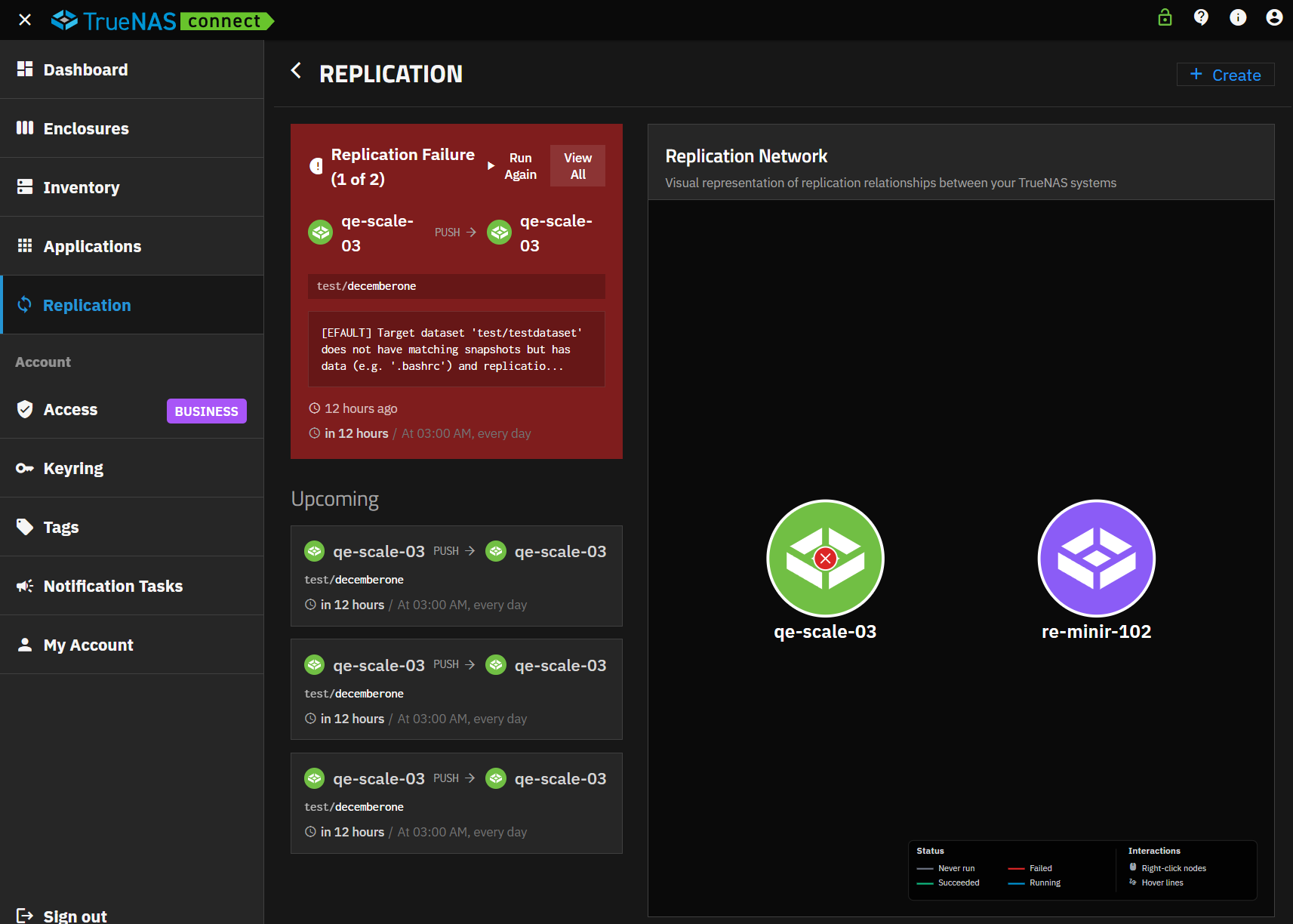
Click Create to open the Replication Wizard.
Check the direction indicator on the Systems wizard screen, if set to PULL, click on it to show PUSH.
Click on the system in the Source column, and then click on the system in the Target column.
Click Next. The Network screen confirms the status of the SSH connection. Click Next to show the Datasets screen.
Select the dataset in the Source Datasets and Target Dataset selection fields, then scroll down to the Container name field.
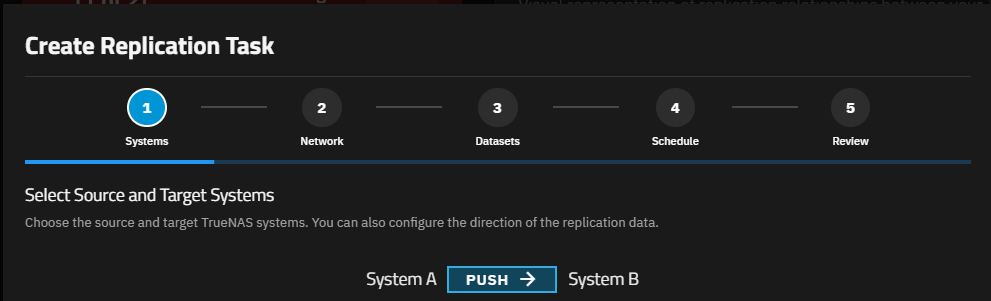
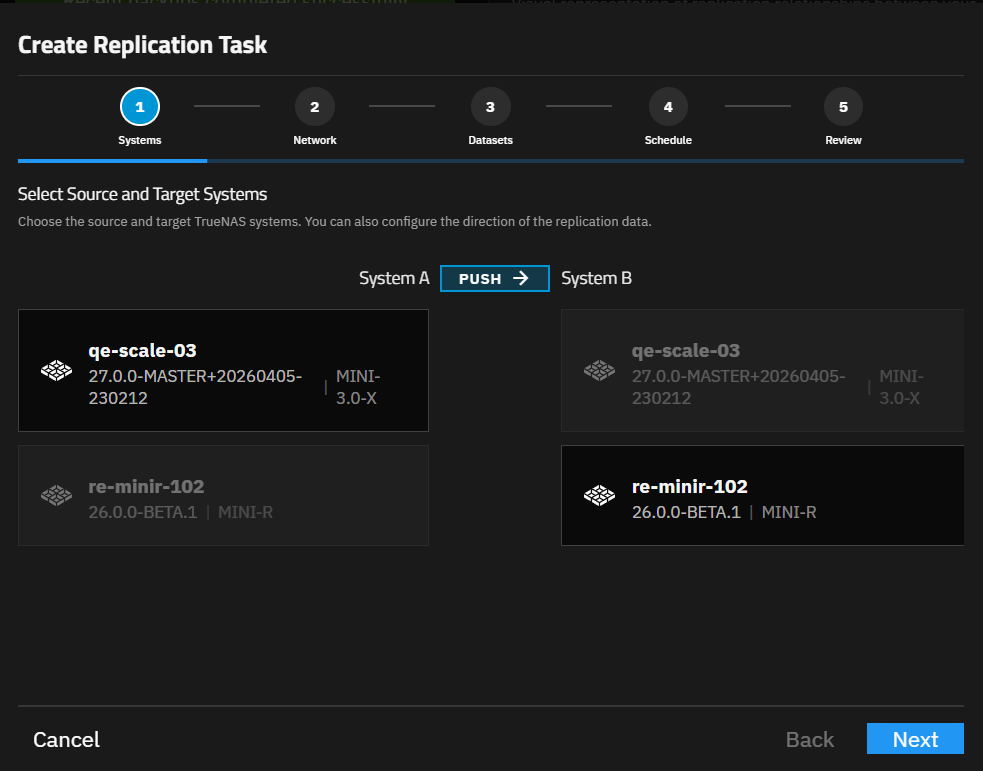
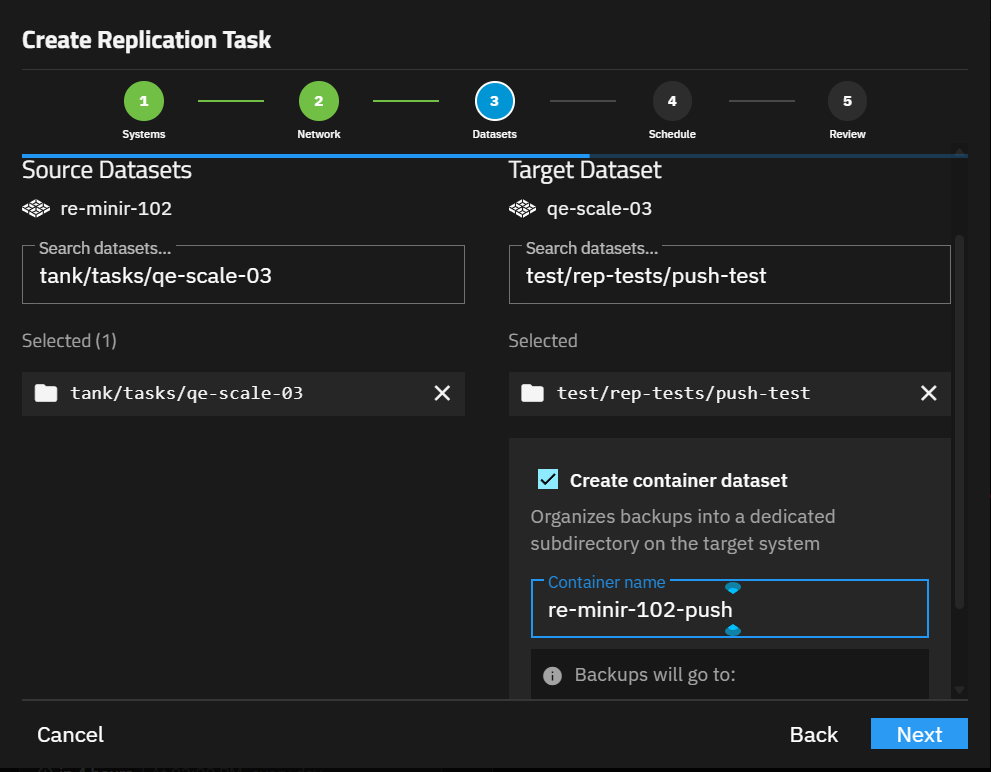
Accept the default name or modify it to suit your preference. For example, adding the direction to the name shown. The Backups will go to path below the Container name field, which includes the container name. Click Next.
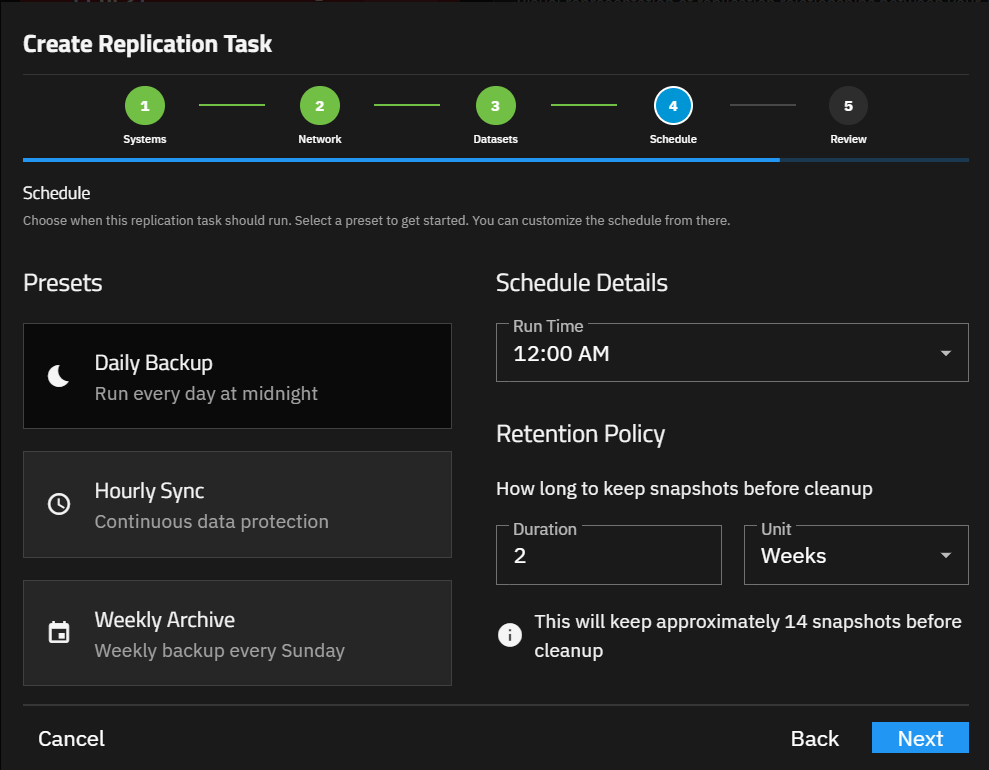
Set the schedule parameters for when TrueNAS Connect should run the replication.
Select the desired option from the Presets (Daily Backup, Hourly Sync, or Weekly Archive), then set the time in the Run Time dropdown field. Accept the default retention period and unit or change it to suit your use case. Click Next.
Review the configuration, and then click Create.
After creating the task, the wizard closes and shows the task on the Upcoming list on the lower left side of the Replication screen.
The Replication screen shows the status of the last completed task or the task selected in the Upcoming or Failed Tasks card.
The failed task card shows only one task and provides the option to run it again. To re-run a task other than the one shown on the failed task card, go to the TrueNAS UI Data Protection screen and locate the task on the Replication Task card or screen.
View All on the TrueNAS Connect failed replication task area opens a window with a read-only list of all failed replication tasks, and the reason for the failure.
You can also go to the TrueNAS UI to view the replication log files for any successful or failed task, or re-run any task. Go to the TrueNAS UI Data Protection screen, locate the task on the Replication Tasks card. To view the logs, click on the status indicator. Click on the Replication Task card header to open the Replication Task screen. Locate the task, click on it to expand it, and show the options to edit, run the task again, or delete it. Deleting the task in the TrueNAS UI deletes it from the TrueNAS Connect Replication screen.