


Replication Screen
6 minute read
Replication Screen
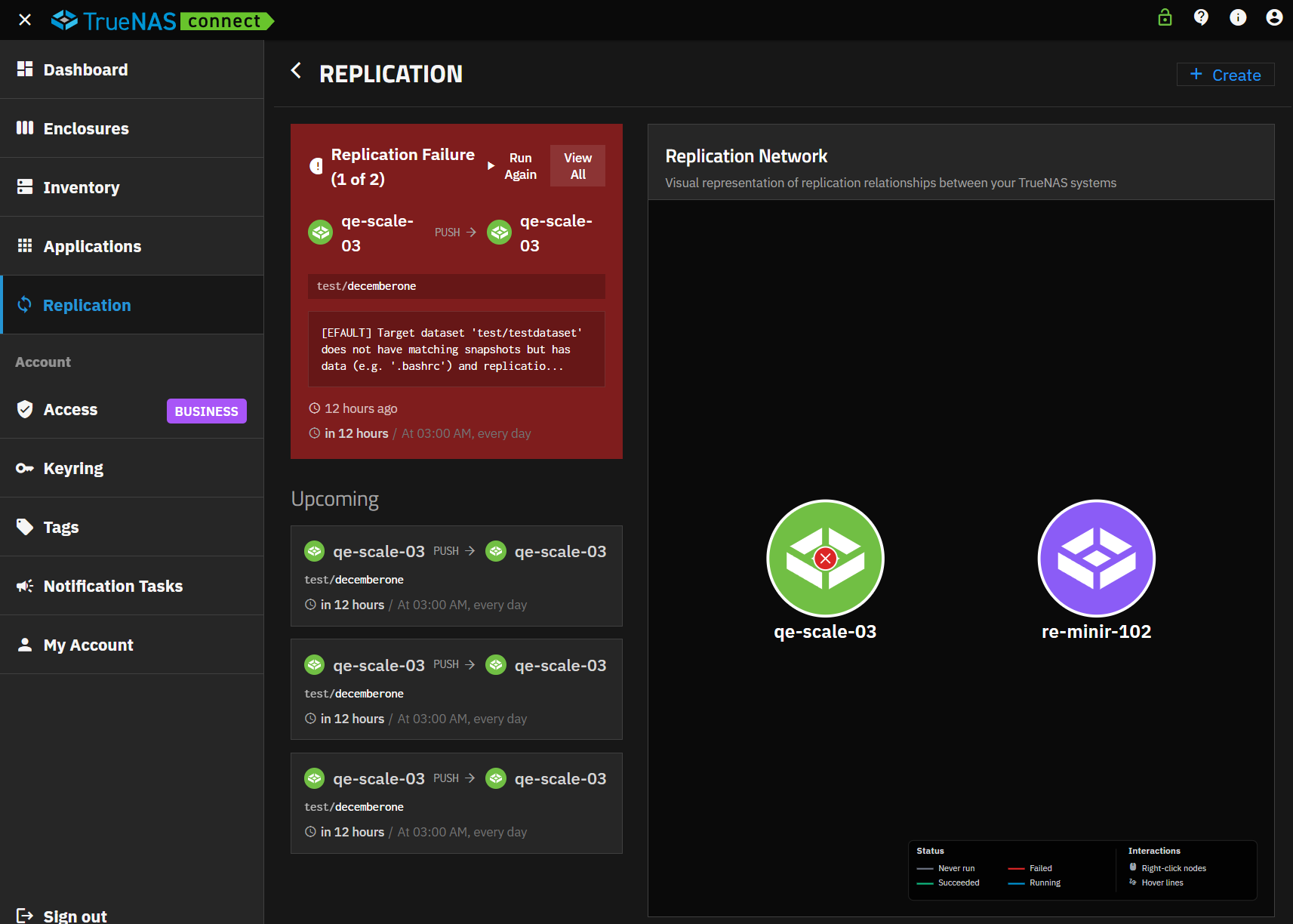
The Replication screen provides views to pending tasks, status of SSH connections between systems, and information on failed replication tasks. The screen is divided into three areas:
- Upcoming task list
- Replication Network status
- Failed task card
Replication Network
The Replication Network panel shows a representation of the relationship between two TrueNAS systems. The node graph shows the two TrueNAS systems in the task selected in the Upcoming task list. The task at the top of the list is shown by default. A legend for the system graph provides details on colors and the status each represents.
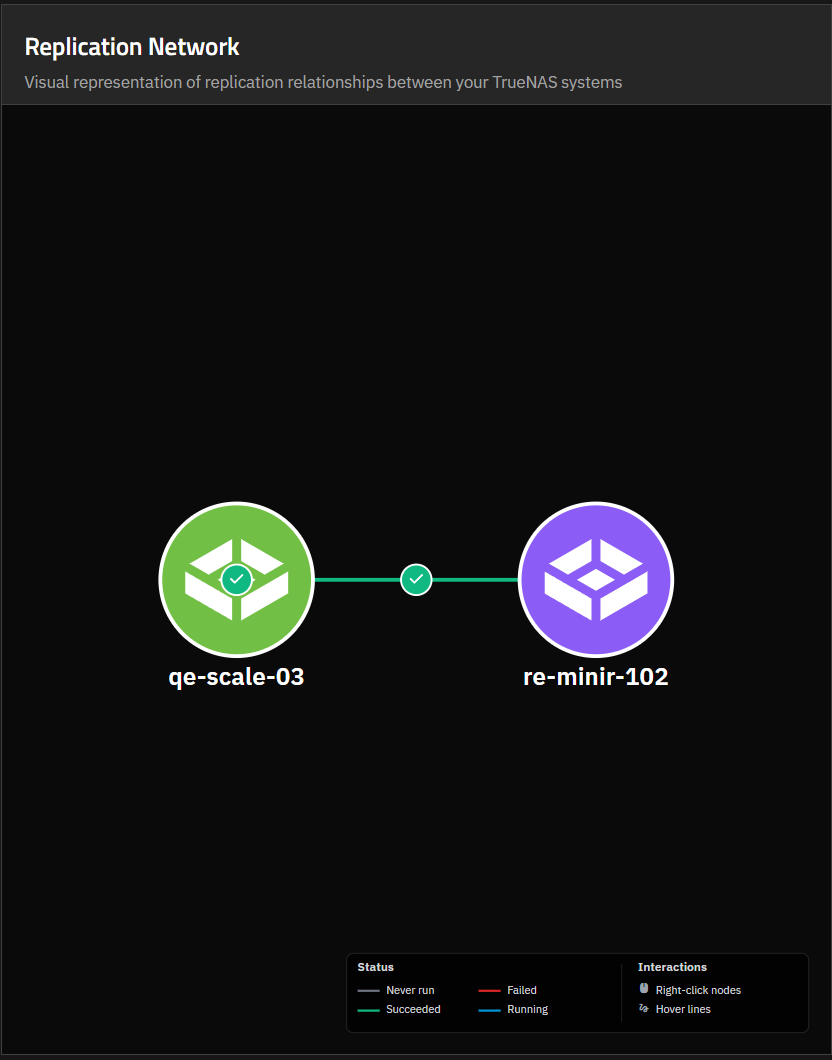
System Graph
The Replication Network system flow graph consists of two circles that represent system nodes. Each node shows a status indicator: a red x that indicates the task failed on that system, or a green checkmark that indicates the task has been completed successfully.
Hover the cursor over the system node to see the options: Create Replication and View Tasks. Right click on the system icon to select an option. Create Replication opens the Create Replication Task wizard. View Tasks opens the Data Protection screen in the TrueNAS UI for that system.
Replication Status Card
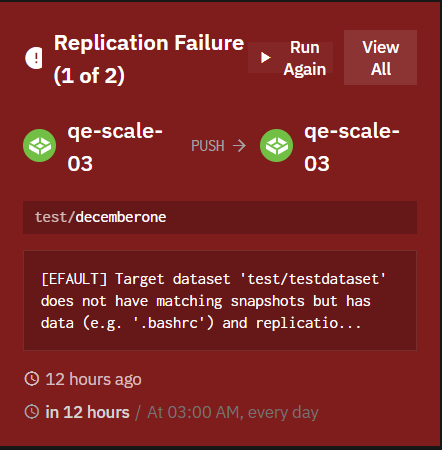
The Replication Failure card shows after a scheduled replication task runs. When tasks succeed, the green card indicates all tasks completed successfully.
When a task fails, the red card shows the task flow (source to target systems), direction of the task (PUSH or PULL), the path to the replicated dataset, the error message returned from the TrueNAS system, when the task ran, and when it is scheduled to run again. Run Again and View All buttons show at the top right of the card.
Task List
The task list shows Upcoming when there are pending tasks scheduled on the system. Each task item is selectable. Selecting a task item changes the system node graph in the Replication Network area of the screen.
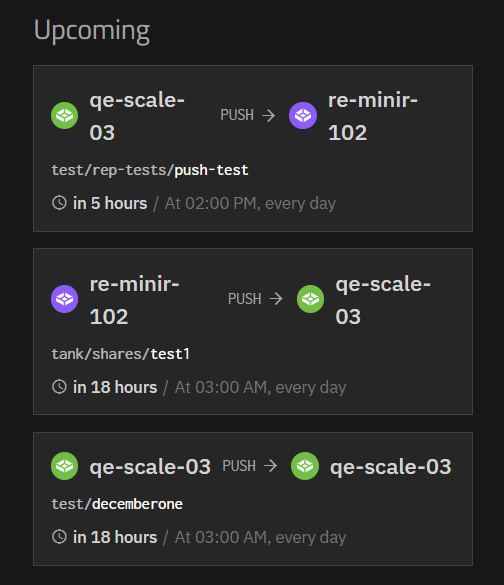
Task items show the system flow and direction of the task, the path to the dataset being replicated, the scheduled time for the task, and the frequency the task runs.
Create Replication Wizard
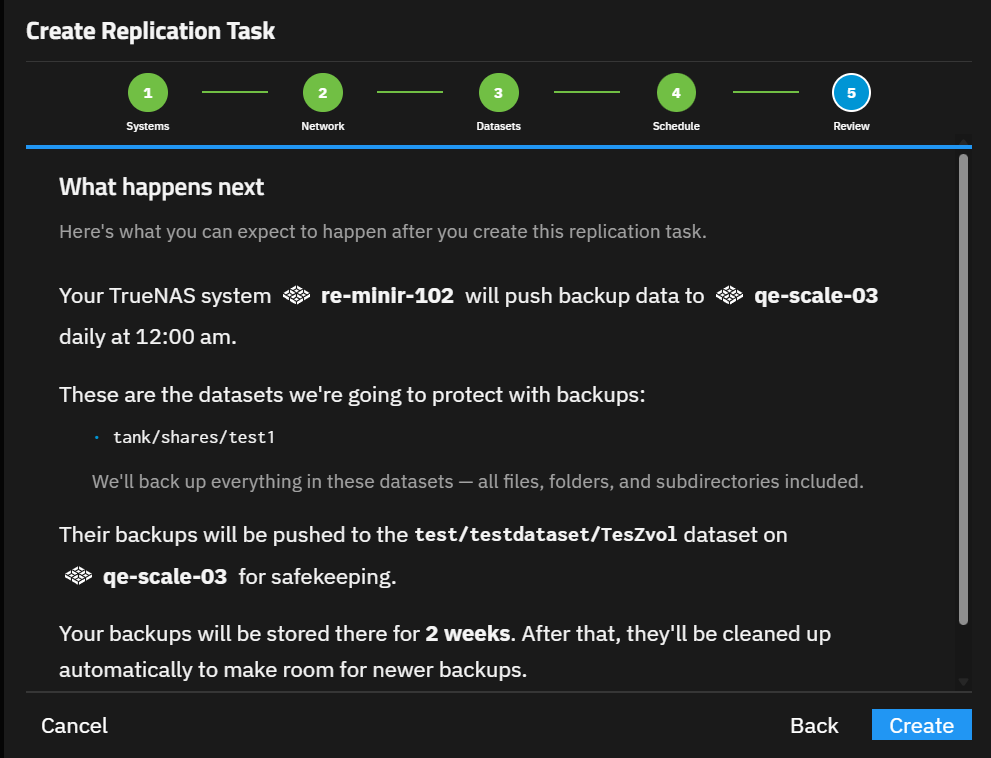
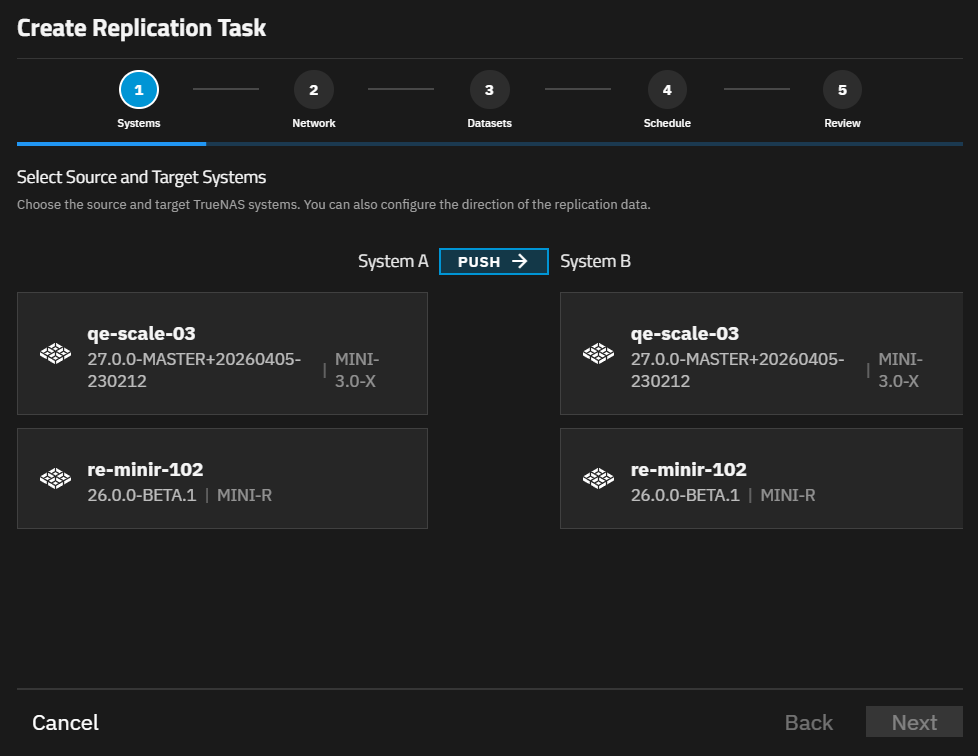
The Create Replication Task wizard has five screens that show the required configuration steps in sequential order. Back activates after completing the required configuration actions on the wizard screen currently shown.
System Screen
The System wizard screen shows by default when you open the Create Replication Task wizard. It shows a selectable system card for each system connected in TrueNAS Connect. System A and System B represent source and target systems. The system selected in the left column is System A, and the system selected in the right column is System B.
Network Screen
The Network wizard screen shows the current primary interface and state of the SSH connection between the source and target systems.
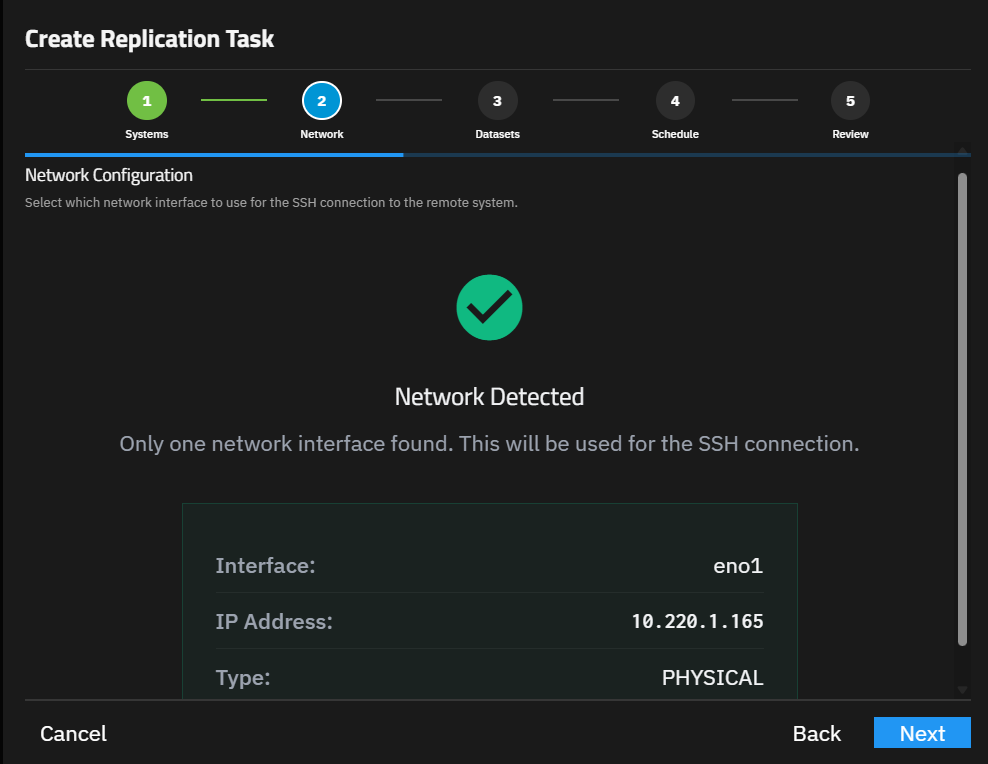
Each interface card shows the interface name (for example, eno1), IP address, and type (physical, bridge, etc.).
Datasets Screen
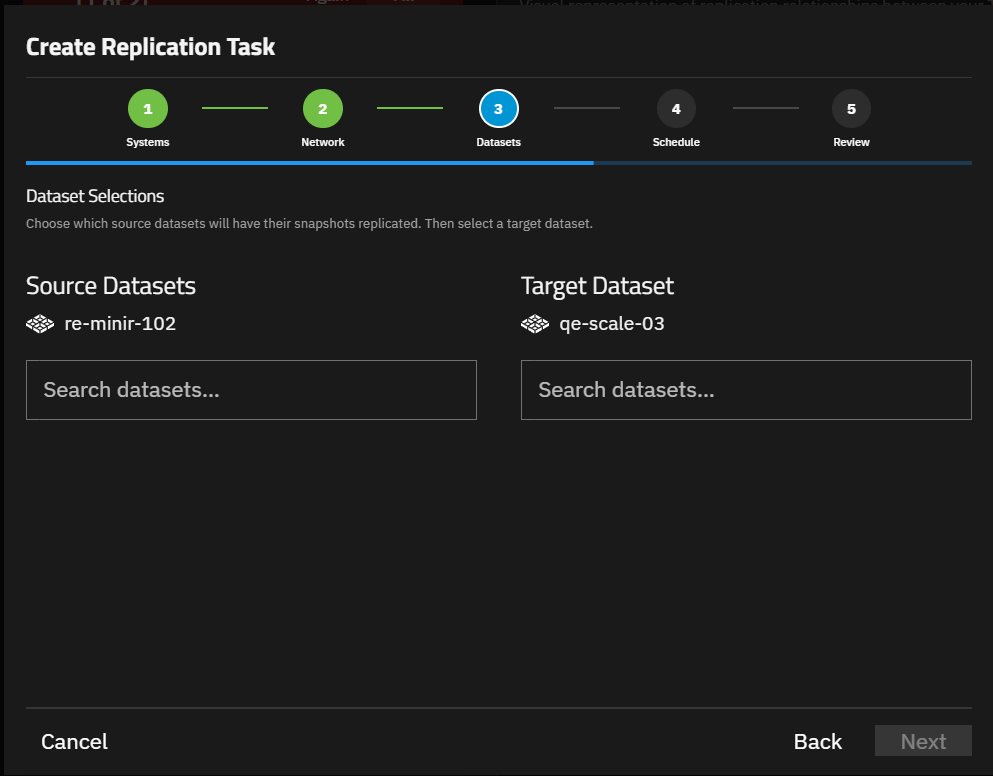
The Datasets wizard screen sets the source and target datasets in the replication task.
Source Dataset Field
The Source dataset search field shows a list of all datasets on the source system. The source system is set on the Systems wizard screen. After selecting the dataset, a path to that dataset shows directly below the Source Dataset field.
Target Dataset Field
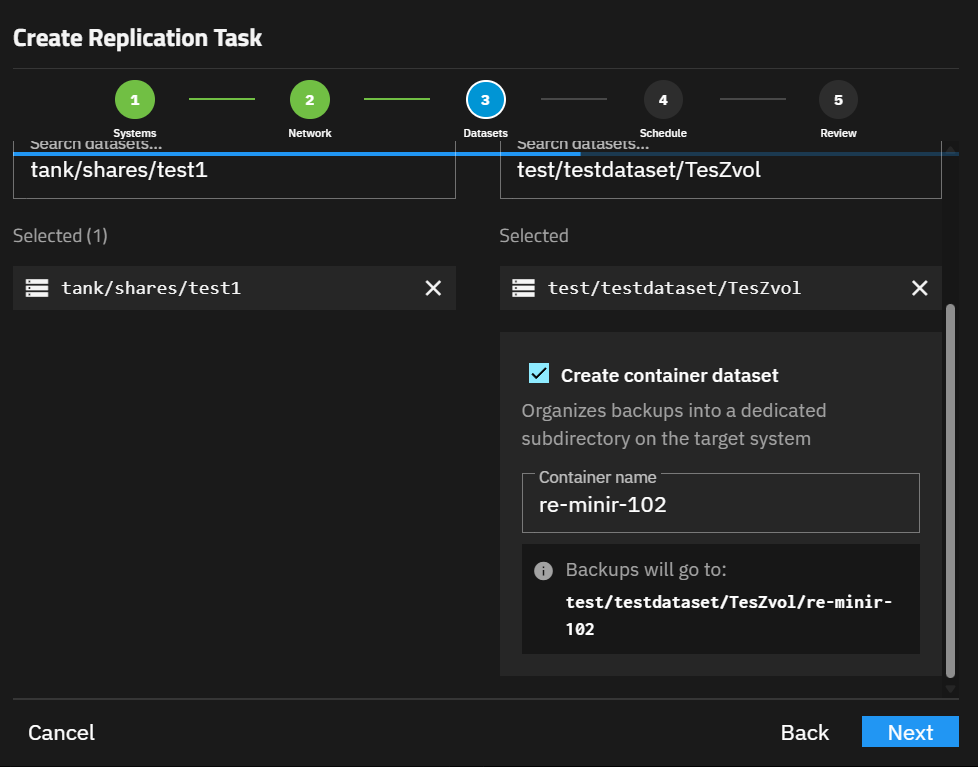
The Target dataset search field shows a list of all datasets on the target system. The target system is set on the Systems wizard screen. After selecting the dataset, a path to that dataset shows directly below the Target Dataset field, and the Create container dataset option and fields show directly below the target path.
Schedule Screen
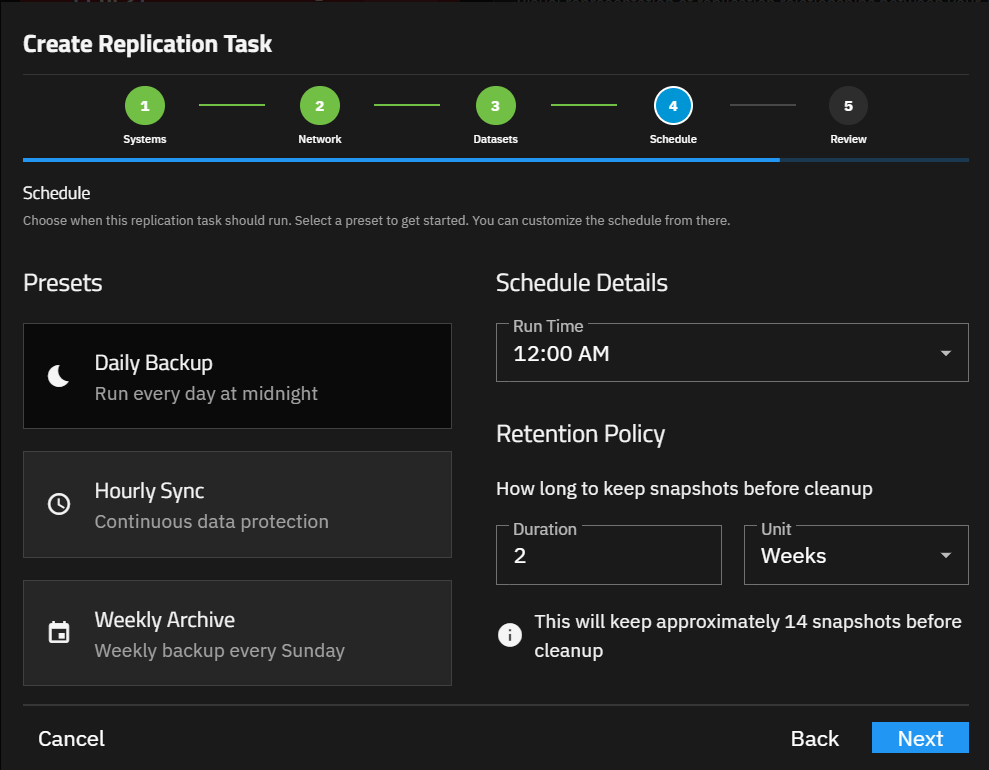
The Schedule wizard screen sets the frequency and time a replication task runs, and how long the completed task snapshot is retained by TrueNAS.
Presets
The Presets buttons set the frequency for when a task occurs:
- Daily Backup - Runs once a day at the time specified in the Run Time field.
- Hourly Sync - Runs hourly beginning at the time specified in the Start Time and End Time fields.
- Weekly Archive - Runs once per week at the time specified in the Day of Week and Run Time fields.
Schedule Details
The Schedule Details area shows fields that determine when a task runs, which is based on the frequency Preset option selected.
Run Time Field
The Run Time selection field shows selectable times, in one-hour increments, that specify when the task runs. Clicking in the field shows the times.
Start Time Field
The Start Time selection field shows selectable times that specify when the task begins. It works with the End Time field to set the period of time the hourly task runs. Clicking in the field shows the times.
End Time Field
The End Time selection field shows selectable times that specify when the last task runs. It works with the Start Time field to set the number of times and the hour the task runs per day. Clicking in the field shows the times.
Day of Week Field
The Day of Week selection field shows selectable days of the week, which specify when the task runs. It works with the Run Time field to set the day and time the weekly task runs. Clicking in the field shows the times.
Retention Policy
The Retention Policy area shows two fields: Duration and Unit, which combine to specify how long replicated snapshots are kept.