



Organize Systems with Tags
How-ToStep-by-step guides covering key operations and common tasks
How to create, apply, and filter by tags to organize multiple TrueNAS systems in TrueNAS Connect.
less than a minute
Using Tags to Organize Your Systems
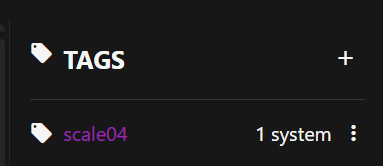
Tags are customizable labels that help you organize and manage multiple TrueNAS systems in TrueNAS Connect. Each tag consists of a name and a color that you can apply to your systems to quickly identify and filter them.
Creating and Using Tags
To create a tag, click the icon in the Tags widget on the dashboard. Enter a descriptive name and select a color to distinguish the tag visually.
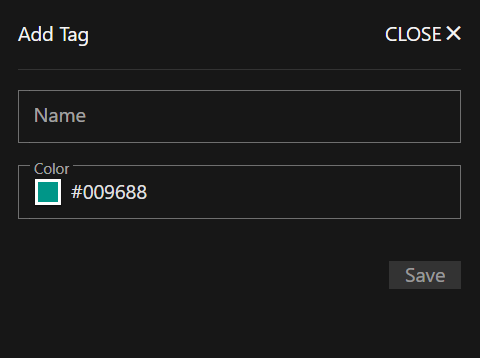
After creating tags, apply them to systems from the Inventory widget using the icon, or directly from system cards. Tags then appear on system cards and become available as filter options in the dashboard Filter field.