



Customize Your Account
less than a minute
Customizing Your Account and Avatar
You can customize your TrueNAS Connect account by viewing your account information and setting a custom avatar image.
To access your account settings, click the My Account option in the main navigation menu.
Viewing Your Account Information
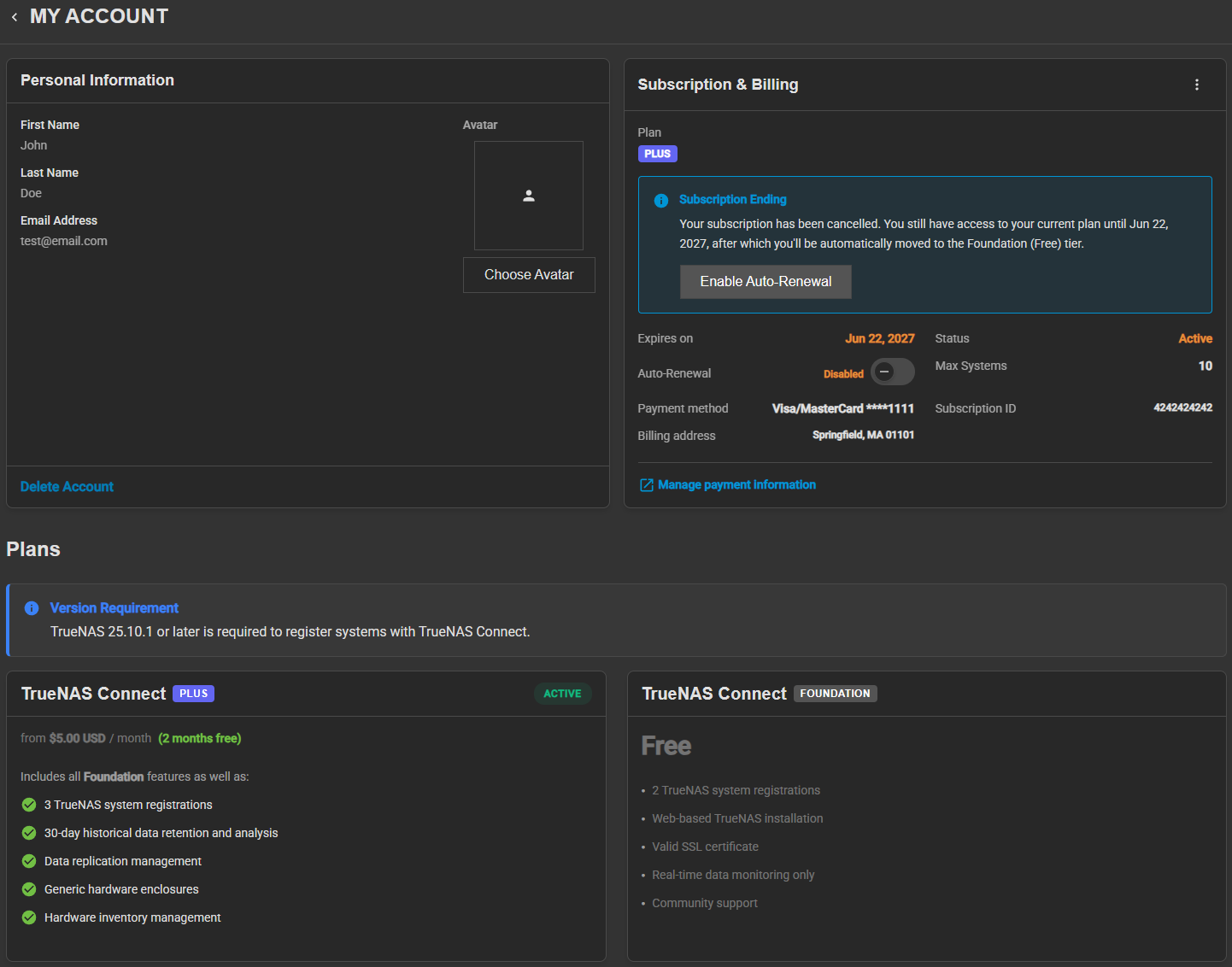
The Personal Information widget shows your account information, including your email address, first name, and last name.
The account fields (Email Address, First Name, and Last Name) are read-only and show the information from your account used to authenticate with TrueNAS Connect.
Setting Your Avatar
You can personalize your TrueNAS Connect account by uploading a custom avatar image.
To upload an avatar:
- In the Avatar area, click Choose Avatar. A file selection dialog opens.
- Select an image file from your computer in JPG, PNG, or WebP format. TrueNAS Connect applies the new avatar.
Your avatar image appears throughout TrueNAS Connect, including in the main navigation and system cards.
To remove your current avatar, click the button to return to the default account icon.